The best tasks to automate with Python are the boring ones you repeat every week: sorting downloads, renaming files, combining spreadsheets, building the same report, sending the same email. This article gives you 15 complete scripts for those jobs. Each one is short enough to read in a few minutes, uses well-maintained libraries, and was run on test files before publication (Python 3.13 on Windows, October 2026), so you can start from working code instead of a sketch.
Who this is for. You know basic Python (variables, loops, functions) and want to apply it at work. If you are newer than that, start with our 25 Python projects for beginners; several of them are smaller versions of these scripts.
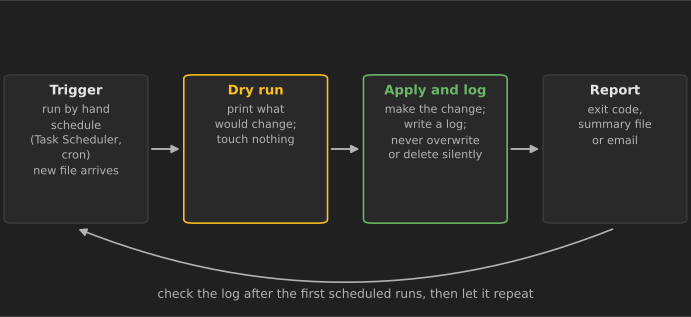
Safety first. Scripts that move, rename or delete files can do a lot of damage very quickly. Every script here that changes files runs as a dry run by default: it prints what it would do and only acts when you add --apply. None of them deletes your files outright; the cleanup script moves old files to an archive folder instead. Try each script on a copy of your data first, and check your organization's IT policy before automating anything that touches company systems, email or customer data.
Setting up
You need Python 3.10 or newer (the scripts use the X | None type syntax). Create a virtual environment for your automation scripts so their libraries do not clash with other projects:
python -m venv .venv
# Windows:      .venv\Scripts\activate
# macOS/Linux:  source .venv/bin/activate
pip install pandas openpyxl pypdf python-docx pillow requests watchdog
The first five scripts use only the standard library. Third-party libraries are named at the top of each script that needs them. Automate the Boring Stuff with Python, now in a free-to-read third edition, covers many of the same tasks in more depth, chapter by chapter.
Files and folders
1. Sort a messy folder into subfolders by file type
Your Downloads folder fills up with PDFs, images, spreadsheets and installers. This script moves each file into a subfolder named after its type. It never overwrites a file: if Images/photo.jpg already exists, the new one becomes photo (1).jpg.
"""Sort the files in a folder into subfolders by type."""
import shutil
import sys
from pathlib import Path

GROUPS = {
    "Images": {".jpg", ".jpeg", ".png", ".gif", ".webp", ".heic"},
    "Documents": {".pdf", ".docx", ".doc", ".txt", ".md", ".pptx"},
    "Spreadsheets": {".xlsx", ".xls", ".csv"},
    "Archives": {".zip", ".tar", ".gz", ".7z"},
    "Installers": {".exe", ".msi", ".dmg", ".pkg"},
}


def destination_for(path: Path) -> str:
    suffix = path.suffix.lower()
    for folder, suffixes in GROUPS.items():
        if suffix in suffixes:
            return folder
    return "Other"


def unique_path(target: Path) -> Path:
    """Add (1), (2)... so an existing file is never overwritten."""
    counter = 1
    candidate = target
    while candidate.exists():
        candidate = target.with_stem(f"{target.stem} ({counter})")
        counter += 1
    return candidate


def organize(folder: Path, dry_run: bool = True) -> None:
    for path in folder.iterdir():
        if not path.is_file() or path.name.startswith("."):
            continue
        target_dir = folder / destination_for(path)
        target = unique_path(target_dir / path.name)
        print(f"{'[dry run] ' if dry_run else ''}{path.name} -> {target_dir.name}/{target.name}")
        if not dry_run:
            target_dir.mkdir(exist_ok=True)
            shutil.move(path, target)


if __name__ == "__main__":
    folder = Path(sys.argv[1]).expanduser()
    organize(folder, dry_run="--apply" not in sys.argv)
Run python organize.py ~/Downloads to preview, then python organize.py ~/Downloads --apply. In our test, a folder with a JPEG, a PDF, a CSV, an installer and an unknown .xyz file ended up with Images, Documents, Spreadsheets, Installers and Other subfolders, and the clashing photo.JPG became photo (1).JPG. Adapt it: edit GROUPS to match the file types you actually receive.
2. Rename files in bulk with a date and a clean name
Inconsistent names such as Meeting Notes (Final).TXT make files hard to find and sort. This script renames files to YYYY-MM-DD_clean-name.ext using each file's last-modified date, so they sort chronologically.
"""Rename files to 'YYYY-MM-DD_original-name.ext' using each file's modified date."""
import re
import sys
from datetime import datetime
from pathlib import Path


def clean_name(stem: str) -> str:
    stem = stem.lower().strip()
    stem = re.sub(r"[^a-z0-9]+", "-", stem)  # spaces and symbols become hyphens
    return stem.strip("-")


def rename_by_date(folder: Path, pattern: str = "*", dry_run: bool = True) -> None:
    for path in sorted(folder.glob(pattern)):
        if not path.is_file() or re.match(r"\d{4}-\d{2}-\d{2}_", path.name):
            continue  # skip folders and files that were already renamed
        modified = datetime.fromtimestamp(path.stat().st_mtime)
        new_name = f"{modified:%Y-%m-%d}_{clean_name(path.stem)}{path.suffix.lower()}"
        target = path.with_name(new_name)
        if target.exists():
            print(f"skip {path.name}: {new_name} already exists")
            continue
        print(f"{'[dry run] ' if dry_run else ''}{path.name} -> {new_name}")
        if not dry_run:
            path.rename(target)


if __name__ == "__main__":
    rename_by_date(Path(sys.argv[1]), sys.argv[2], dry_run="--apply" not in sys.argv)
python rename.py ./reports "*.*" turned Meeting Notes (Final).TXT into 2026-10-21_meeting-notes-final.txt and Q3 budget!!.xlsx into 2026-10-21_q3-budget.xlsx. Running it a second time changes nothing, because files that already start with a date are skipped. A script you can safely run twice is called idempotent, and it is a property worth aiming for in all automation. Note that the modified date is not always the creation date; copying a file can change it.
3. Find duplicate files
Shared drives collect copies of the same file under different names. This script finds files with identical contents by computing a SHA-256 hash of each one. To stay fast on large folders, it only hashes files whose size matches another file's size, because files of different sizes cannot be identical.
"""Report duplicate files under a folder by comparing SHA-256 hashes."""
import hashlib
import sys
from collections import defaultdict
from pathlib import Path


def sha256(path: Path) -> str:
    with path.open("rb") as f:
        return hashlib.file_digest(f, "sha256").hexdigest()  # Python 3.11+


def find_duplicates(root: Path) -> list[list[Path]]:
    by_size = defaultdict(list)
    for path in root.rglob("*"):
        if path.is_file():
            by_size[path.stat().st_size].append(path)

    by_hash = defaultdict(list)
    for same_size in by_size.values():
        if len(same_size) < 2:
            continue  # a file with a unique size cannot have a duplicate
        for path in same_size:
            by_hash[sha256(path)].append(path)
    return [paths for paths in by_hash.values() if len(paths) > 1]


if __name__ == "__main__":
    groups = find_duplicates(Path(sys.argv[1]))
    for group in groups:
        size_kb = group[0].stat().st_size / 1024
        print(f"{len(group)} copies, {size_kb:.1f} KB each:")
        for path in group:
            print(f"   {path}")
    print(f"{len(groups)} duplicate group(s) found")
The script only reports duplicates; deciding which copy to keep is a human decision. hashlib.file_digest needs Python 3.11 or newer (hashlib documentation).
4. Archive files you have not touched in months
Instead of deleting old files, this script moves anything not modified for a given number of days into an _archive folder, keeping the original subfolder structure so you can find things again.
"""Move files not modified for N days into an archive folder (nothing is deleted)."""
import shutil
import sys
import time
from pathlib import Path


def archive_old_files(folder: Path, days: int, dry_run: bool = True) -> None:
    cutoff = time.time() - days * 24 * 60 * 60
    archive = folder / "_archive"
    moved = 0
    for path in folder.rglob("*"):
        if not path.is_file() or archive in path.parents:
            continue
        if path.stat().st_mtime < cutoff:
            target = archive / path.relative_to(folder)  # keep the subfolder structure
            print(f"{'[dry run] ' if dry_run else ''}{path.relative_to(folder)}")
            if not dry_run:
                target.parent.mkdir(parents=True, exist_ok=True)
                shutil.move(path, target)
            moved += 1
    print(f"{moved} file(s) older than {days} days")


if __name__ == "__main__":
    archive_old_files(Path(sys.argv[1]), int(sys.argv[2]), dry_run="--apply" not in sys.argv)
python archive_old.py ./project 90 --apply moved one file last modified in January 2025 into _archive/ and left the recent files alone. Once you trust the archive, you can review and empty it manually.
5. Back up a folder to a dated zip file
This script zips a folder into a timestamped archive such as reports_2026-10-21_233518.zip and keeps only the newest seven backups. Because the timestamp format sorts alphabetically in date order, finding the oldest backups needs no date parsing.
"""Zip a folder into a dated backup and keep only the newest N backups."""
import shutil
import sys
from datetime import datetime
from pathlib import Path


def backup(source: Path, backup_dir: Path, keep: int = 7) -> Path:
    backup_dir.mkdir(parents=True, exist_ok=True)
    stamp = datetime.now().strftime("%Y-%m-%d_%H%M%S")
    base_name = backup_dir / f"{source.name}_{stamp}"
    archive = Path(shutil.make_archive(str(base_name), "zip", root_dir=source))

    backups = sorted(backup_dir.glob(f"{source.name}_*.zip"))
    for old in backups[:-keep]:  # names sort by date because of the timestamp format
        old.unlink()
        print(f"removed old backup {old.name}")
    return archive


if __name__ == "__main__":
    created = backup(Path(sys.argv[1]), Path(sys.argv[2]))
    print(f"created {created} ({created.stat().st_size / 1024:.1f} KB)")
Store backups on a different disk or cloud folder from the original; a backup on the same drive does not survive that drive failing. For important data, a dedicated backup tool with versioning is more reliable than a script, but this is a good habit for working folders.
Spreadsheets and reports
6. Combine many CSV and Excel files into one table
Monthly exports, one file per region, one sheet per person: combining them by copy and paste is slow and error-prone. This script reads every .csv and .xlsx file in a folder with pandas, adds a source_file column so each row can be traced back, and writes one combined CSV.
"""Combine every CSV and Excel file in a folder into one table."""
import sys
from pathlib import Path

import pandas as pd


def load(path: Path) -> pd.DataFrame:
    if path.suffix.lower() == ".csv":
        return pd.read_csv(path)
    return pd.read_excel(path)  # needs openpyxl for .xlsx


def merge_folder(folder: Path, output: Path) -> pd.DataFrame:
    frames = []
    for path in sorted(folder.iterdir()):
        if path.suffix.lower() not in {".csv", ".xlsx"} or path == output:
            continue
        frame = load(path)
        frame["source_file"] = path.name  # so every row can be traced back
        frames.append(frame)
    combined = pd.concat(frames, ignore_index=True)
    combined.to_csv(output, index=False)
    return combined


if __name__ == "__main__":
    folder = Path(sys.argv[1])
    result = merge_folder(folder, folder / "combined.csv")
    print(result.groupby("source_file").size())
    print(f"{len(result)} rows, columns: {list(result.columns)}")
In our test, a two-row CSV and a three-row Excel file became one five-row table with columns date, region, amount and source_file. The files must share column names; if one file says Amount and another amount, rename the columns after loading. For more pandas techniques, see our 100 pandas tips and tricks.
7. Build a formatted Excel summary report
Managers often want the same summary every week: totals by region, formatted, with a total row. This script uses pandas to calculate the summary and openpyxl to style it: a bold, colored header, a frozen top row, number formatting and live SUM formulas.
"""Turn raw sales rows into a formatted Excel summary with a total row."""
import sys

import pandas as pd
from openpyxl import load_workbook
from openpyxl.styles import Font, PatternFill
from openpyxl.utils import get_column_letter


def build_report(csv_path: str, xlsx_path: str) -> None:
    sales = pd.read_csv(csv_path, parse_dates=["date"])
    summary = (
        sales.groupby("region", as_index=False)
        .agg(orders=("amount", "size"), revenue=("amount", "sum"))
        .sort_values("revenue", ascending=False)
    )
    summary.to_excel(xlsx_path, sheet_name="Summary", index=False)

    wb = load_workbook(xlsx_path)
    ws = wb["Summary"]
    for cell in ws[1]:  # header row
        cell.font = Font(bold=True, color="FFFFFF")
        cell.fill = PatternFill("solid", fgColor="2F5D2E")
    last = ws.max_row
    ws.cell(row=last + 1, column=1, value="Total").font = Font(bold=True)
    ws.cell(row=last + 1, column=2, value=f"=SUM(B2:B{last})")
    ws.cell(row=last + 1, column=3, value=f"=SUM(C2:C{last})")
    for row in ws.iter_rows(min_row=2, min_col=3, max_col=3):
        row[0].number_format = "#,##0.00"
    for col in range(1, ws.max_column + 1):
        ws.column_dimensions[get_column_letter(col)].width = 16
    ws.freeze_panes = "A2"
    wb.save(xlsx_path)
    print(summary.to_string(index=False))


if __name__ == "__main__":
    build_report(sys.argv[1], sys.argv[2])
From the combined data in script 6, it produced this summary, plus a total row containing the formulas =SUM(B2:B4) and =SUM(C2:C4):
region  orders  revenue
 North       2   320.50
  East       2   125.25
 South       1    80.00
Writing formulas rather than fixed numbers means the totals stay correct if someone edits a value in Excel later.
8. Merge and split PDF files
Combining scanned pages into one document, or splitting a long PDF into single pages for different recipients, are common requests. pypdf handles both in pure Python.
"""Merge PDFs into one file, or split one PDF into single pages."""
import sys
from pathlib import Path

from pypdf import PdfReader, PdfWriter


def merge(pdfs: list[Path], output: Path) -> None:
    writer = PdfWriter()
    for pdf in pdfs:
        writer.append(pdf)  # appends every page of the file
    with output.open("wb") as f:
        writer.write(f)
    print(f"merged {len(pdfs)} files into {output.name} ({len(writer.pages)} pages)")


def split(pdf: Path, out_dir: Path) -> None:
    out_dir.mkdir(exist_ok=True)
    reader = PdfReader(pdf)
    for number, page in enumerate(reader.pages, start=1):
        writer = PdfWriter()
        writer.add_page(page)
        with (out_dir / f"{pdf.stem}_page{number:03d}.pdf").open("wb") as f:
            writer.write(f)
    print(f"split {pdf.name} into {len(reader.pages)} files")


if __name__ == "__main__":
    folder = Path(sys.argv[1])
    combined = folder / "combined.pdf"
    merge(sorted(p for p in folder.glob("*.pdf") if p != combined), combined)
    split(combined, folder / "pages")
Our test merged a two-page and a three-page PDF into one five-page file, then split it into combined_page001.pdf to combined_page005.pdf. pypdf can also rotate pages, extract text and add watermarks. It cannot reliably read text from scanned images; that needs OCR software.
9. Generate Word letters or certificates from a spreadsheet
Mail merge in Python: one .docx file per row of a CSV, using python-docx. Here each row becomes a personalized letter with a small table.
"""Create one Word document per row of a CSV from a simple template."""
import csv
import sys
from datetime import date
from pathlib import Path

from docx import Document
from docx.shared import Pt


def make_letter(row: dict, out_dir: Path) -> Path:
    doc = Document()
    doc.styles["Normal"].font.size = Pt(11)
    doc.add_paragraph(date.today().strftime("%d %B %Y"))
    doc.add_paragraph(f"Dear {row['name']},")
    doc.add_paragraph(
        f"Thank you for attending {row['event']}. Your certificate number is "
        f"{row['certificate']}. Please keep this letter for your records."
    )
    table = doc.add_table(rows=1, cols=2)
    table.style = "Table Grid"
    table.rows[0].cells[0].text = "Hours completed"
    table.rows[0].cells[1].text = row["hours"]
    doc.add_paragraph("Kind regards,\nThe Training Team")
    path = out_dir / f"letter_{row['certificate']}.docx"
    doc.save(path)
    return path


if __name__ == "__main__":
    out_dir = Path(sys.argv[2])
    out_dir.mkdir(exist_ok=True)
    with open(sys.argv[1], newline="", encoding="utf-8") as f:
        for row in csv.DictReader(f):
            print("wrote", make_letter(row, out_dir).name)
With a CSV containing name,event,certificate,hours, the script wrote letter_PB-001.docx and letter_PB-002.docx; the first begins "Dear Asha Rao, Thank you for attending Python Basics…". To match your organization's branding, create a styled .docx template in Word and open it with Document("template.docx") instead of starting from a blank document.
10. Email a report with an attachment
The standard library can send email with smtplib and build messages with email.message.EmailMessage (smtplib documentation). This script attaches a file and sends it over an encrypted connection.
"""Email a report with an attachment. The password comes from an environment variable."""
import mimetypes
import os
import smtplib
import sys
from email.message import EmailMessage
from pathlib import Path


def build_message(sender: str, to: list[str], subject: str, body: str, attachment: Path) -> EmailMessage:
    msg = EmailMessage()
    msg["From"] = sender
    msg["To"] = ", ".join(to)
    msg["Subject"] = subject
    msg.set_content(body)
    mime, _ = mimetypes.guess_type(attachment.name)
    maintype, subtype = (mime or "application/octet-stream").split("/")
    msg.add_attachment(attachment.read_bytes(), maintype=maintype, subtype=subtype,
                       filename=attachment.name)
    return msg


def send(msg: EmailMessage) -> None:
    host = os.environ["SMTP_HOST"]          # for example smtp.gmail.com
    user = os.environ["SMTP_USER"]
    password = os.environ["SMTP_PASSWORD"]  # an app password, never hard-coded
    with smtplib.SMTP(host, 587, timeout=30) as server:
        server.starttls()                   # encrypt before logging in
        server.login(user, password)
        server.send_message(msg)


if __name__ == "__main__":
    report = Path(sys.argv[1])
    message = build_message(
        sender=os.environ.get("SMTP_USER", "me@example.com"),
        to=["team@example.com"],
        subject=f"Weekly report: {report.stem}",
        body="Hi all,\n\nThe weekly report is attached.\n",
        attachment=report,
    )
    if "--send" in sys.argv:
        send(message)
    else:
        print(message["Subject"], "|", [p.get_filename() for p in message.iter_attachments()])
Three rules for automated email:
- Never put a password in the script. Read it from environment variables, as above, or from your operating system's credential store (the third-party
keyringpackage can do this). - Use an app password or the provider's API. Gmail, for example, only allows app passwords on accounts with 2-Step Verification, and Google recommends "Sign in with Google" where an app supports it (Google Account Help). Company Microsoft 365 accounts often block basic SMTP sign-in; ask your IT team which method is approved.
- Test without sending. Without
--send, the script only builds the message and prints its subject and attachment names, which is how we tested it.
Monitoring and data
11. Watch a folder and process new files automatically
Instead of running a script by hand when a file arrives, the watchdog library can react to file system events. This script processes each new CSV dropped into an "inbox" folder, then moves it to processed/.
"""Watch an inbox folder and process each new CSV as soon as it arrives."""
import shutil
import sys
import time
from pathlib import Path

from watchdog.events import FileSystemEventHandler
from watchdog.observers import Observer


class CsvHandler(FileSystemEventHandler):
    def __init__(self, done_dir: Path):
        self.done_dir = done_dir

    def on_created(self, event):
        path = Path(event.src_path)
        if event.is_directory or path.suffix.lower() != ".csv":
            return
        time.sleep(1)  # give the program that is writing the file time to finish
        rows = sum(1 for _ in path.open(encoding="utf-8")) - 1
        print(f"{path.name}: {rows} data rows")
        shutil.move(path, self.done_dir / path.name)


def watch(inbox: Path, seconds: float | None = None) -> None:
    done = inbox / "processed"
    done.mkdir(exist_ok=True)
    observer = Observer()
    observer.schedule(CsvHandler(done), str(inbox), recursive=False)
    observer.start()
    try:
        start = time.monotonic()
        while seconds is None or time.monotonic() - start < seconds:
            time.sleep(0.5)
    except KeyboardInterrupt:
        pass
    finally:
        observer.stop()
        observer.join()


if __name__ == "__main__":
    watch(Path(sys.argv[1]), float(sys.argv[2]) if len(sys.argv) > 2 else None)
In our test, a CSV saved into the inbox two seconds after the watcher started was reported as new.csv: 2 data rows and moved to processed/. The one-second pause handles a real problem: the "created" event can fire before the program writing the file has finished. For large files, check that the size has stopped changing before you read it.
12. Summarize errors in a log file
Server and application logs are long, but the question is usually simple: which errors happened, and how often? This script parses the common log format used by nginx and Apache with a regular expression, counts status codes, and writes the 4xx and 5xx errors to a CSV.
"""Summarize errors in a web server access log and save them to CSV."""
import csv
import re
import sys
from collections import Counter

# Matches the common/combined log format used by nginx and Apache.
LINE = re.compile(
    r'(?P<ip>\S+) \S+ \S+ \[(?P<time>[^\]]+)\] '
    r'"(?P<method>[A-Z]+) (?P<path>\S+) [^"]*" (?P<status>\d{3}) (?P<size>\S+)'
)


def summarize(log_path: str, csv_path: str) -> None:
    status_counts = Counter()
    error_paths = Counter()
    unparsed = 0
    with open(log_path, encoding="utf-8", errors="replace") as f:
        for line in f:
            match = LINE.match(line)
            if not match:
                unparsed += 1
                continue
            status = match["status"]
            status_counts[status] += 1
            if status.startswith(("4", "5")):
                error_paths[(status, match["path"])] += 1

    with open(csv_path, "w", newline="", encoding="utf-8") as f:
        writer = csv.writer(f)
        writer.writerow(["status", "path", "count"])
        for (status, path), count in error_paths.most_common():
            writer.writerow([status, path, count])

    print("status codes:", dict(sorted(status_counts.items())))
    print("top errors:", error_paths.most_common(3))
    print("unparsed lines:", unparsed)


if __name__ == "__main__":
    summarize(sys.argv[1], sys.argv[2])
On a five-line sample log, it printed status codes: {'200': 1, '404': 2, '500': 1}, listed /old-page (404, twice) as the top error, and counted one unparsed line instead of crashing on it. Counting lines the pattern could not read is important: if that number is large, your log format differs from what the regular expression expects.
13. Check whether websites are up
This script checks a list of URLs in parallel threads and reports any that are down, returning errors or responding slowly. It exits with code 1 when there is a problem, so a scheduler or monitoring tool can treat the run as failed.
"""Check a list of URLs in parallel and report the ones that are down or slow."""
import sys
from concurrent.futures import ThreadPoolExecutor

import requests

SLOW_SECONDS = 2.0


def check(url: str) -> tuple[str, str]:
    try:
        response = requests.get(url, timeout=10, headers={"User-Agent": "uptime-check/1.0"})
    except requests.RequestException as exc:
        return url, f"DOWN ({type(exc).__name__})"
    seconds = response.elapsed.total_seconds()
    if response.status_code >= 400:
        return url, f"ERROR {response.status_code}"
    if seconds > SLOW_SECONDS:
        return url, f"SLOW {seconds:.1f}s"
    return url, f"OK {response.status_code} in {seconds:.2f}s"


if __name__ == "__main__":
    with open(sys.argv[1], encoding="utf-8") as f:
        urls = [line.strip() for line in f if line.strip() and not line.startswith("#")]
    with ThreadPoolExecutor(max_workers=8) as pool:
        results = list(pool.map(check, urls))
    problems = [(u, s) for u, s in results if not s.startswith("OK")]
    for url, status in results:
        print(f"{status:<28} {url}")
    sys.exit(1 if problems else 0)  # a non-zero exit code lets a scheduler flag the run
Our test list produced:
OK 200 in 0.55s              https://www.python.org/
ERROR 503                    https://httpbin.org/status/503
DOWN (ConnectionError)       https://does-not-exist.invalid/
Threads suit this task because the script spends almost all its time waiting for the network. Only check sites you own or are responsible for, and do not run it every few seconds; once every few minutes is plenty for an internal dashboard.
14. Resize and compress images in bulk
Phone photos are often 4–10 MB each, too big for email, slides or a website. This script uses Pillow to shrink every image to fit within 1600×1600 pixels, keep its aspect ratio, respect the camera's rotation flag and save it as an optimized JPEG.
"""Resize every photo in a folder to fit within a maximum size and save as JPEG."""
import sys
from pathlib import Path

from PIL import Image, ImageOps

MAX_SIZE = (1600, 1600)


def shrink_images(src: Path, dst: Path, quality: int = 85) -> None:
    dst.mkdir(exist_ok=True)
    for path in sorted(src.iterdir()):
        if path.suffix.lower() not in {".jpg", ".jpeg", ".png", ".webp"}:
            continue
        with Image.open(path) as img:
            img = ImageOps.exif_transpose(img)  # respect the camera's rotation flag
            img.thumbnail(MAX_SIZE)             # keeps the aspect ratio, never enlarges
            out = dst / f"{path.stem}.jpg"
            img.convert("RGB").save(out, "JPEG", quality=quality, optimize=True)
        before, after = path.stat().st_size, out.stat().st_size
        print(f"{path.name}: {before // 1024} KB -> {after // 1024} KB, {img.size}")


if __name__ == "__main__":
    shrink_images(Path(sys.argv[1]), Path(sys.argv[2]))
A 4000×3000 test image came out at 1600×1200 pixels. ImageOps.exif_transpose matters more than it looks: without it, photos taken in portrait orientation can appear sideways after resizing. JPEG has no transparency, so keep logos and screenshots with transparent backgrounds as PNG.
15. Download data from an API into a CSV
Many reports start with "go to this website and copy the numbers". If the site offers an API, a script can fetch the data directly. This example downloads a seven-day forecast from Open-Meteo, a weather API that needs no key for non-commercial use.
"""Download daily weather for a city from the Open-Meteo API and save it as CSV."""
import csv
import sys

import requests

API = "https://api.open-meteo.com/v1/forecast"


def fetch_daily(lat: float, lon: float, days: int = 7) -> list[dict]:
    params = {
        "latitude": lat,
        "longitude": lon,
        "daily": "temperature_2m_max,temperature_2m_min,precipitation_sum",
        "timezone": "auto",
        "forecast_days": days,
    }
    response = requests.get(API, params=params, timeout=15)
    response.raise_for_status()  # stop on 4xx/5xx instead of writing a bad file
    daily = response.json()["daily"]
    return [
        {
            "date": day,
            "max_c": daily["temperature_2m_max"][i],
            "min_c": daily["temperature_2m_min"][i],
            "rain_mm": daily["precipitation_sum"][i],
        }
        for i, day in enumerate(daily["time"])
    ]


if __name__ == "__main__":
    rows = fetch_daily(float(sys.argv[1]), float(sys.argv[2]))
    with open(sys.argv[3], "w", newline="", encoding="utf-8") as f:
        writer = csv.DictWriter(f, fieldnames=rows[0].keys())
        writer.writeheader()
        writer.writerows(rows)
    print(f"saved {len(rows)} days; first row: {rows[0]}")
python weather.py 51.5072 -0.1276 london.csv saved seven rows; the first, for 21 October 2026, read {'date': '2026-10-21', 'max_c': 11.5, 'min_c': 8.6, 'rain_mm': 3.8}. Forecasts change, so your numbers will differ. Read an API's terms before automating it: Open-Meteo's free tier is for non-commercial use only, with limits of 10,000 calls a day, and requires attribution under CC BY 4.0 (Open-Meteo terms). Company use needs a paid plan. If a site has no API, see our guide to Python web scraping techniques, which also covers when scraping is and is not appropriate.
Run scripts on a schedule
A script you have to remember to run only saves part of the time. Once it works reliably by hand, schedule it.
Windows (Task Scheduler). Use the Task Scheduler app, or create a task from the command line (Microsoft documentation). Use the full path to the Python executable inside your virtual environment so the right libraries are available:
schtasks /Create /SC DAILY /ST 18:00 /TN "Organize downloads" /TR "C:\scripts\.venv\Scripts\python.exe C:\scripts\organize.py C:\Users\me\Downloads --apply"
macOS and Linux (cron). Run crontab -e and add a line. This one runs at 18:00 on weekdays and appends all output to a log file:
0 18 * * 1-5 /home/me/scripts/.venv/bin/python /home/me/scripts/organize.py /home/me/Downloads --apply >> /home/me/logs/organize.log 2>&1
Scheduled scripts run without you watching, so:
- Log what happened. Redirect output to a file, as above, or use Python's
loggingmodule with timestamps. - Use absolute paths. A scheduled task does not start in the folder you expect.
- Fail loudly. Exit with a non-zero code on errors (script 13 shows how) and have the scheduler or a short email tell you.
- Check the first few runs. Read the log after the first scheduled runs before you stop thinking about it.
Habits that keep automation safe and useful
- Automate what you understand. Do the task by hand a few times and write down the steps first. A script that encodes a confused process just produces confusion faster.
- Calculate whether it is worth it. A task that takes 10 minutes a week costs about 8 hours a year. If the script takes 2 hours to write and test, it pays off quickly; a once-a-year task usually does not.
- Keep scripts in version control (Git), with a short README saying what each one does and how to run it, so a colleague can maintain it when you are away.
- Handle the unexpected. Real folders contain open files, locked files, odd characters in names and empty spreadsheets. Test with messy copies of real data, not just the happy path.
- Respect data rules. Personal and customer data stays subject to your organization's policies and data protection law when a script handles it.
Where to go next
- Practice the underlying skills with 25 Python projects for beginners.
- Collect data from websites responsibly with 10 Python web scraping techniques.
- Go deeper into data work with the 20 best Python libraries for data science and machine learning and 100 pandas tips and tricks.
- Find more programming writing in the Programming and Technology category.
References
- Python Software Foundation. "pathlib — Object-oriented filesystem paths." docs.python.org
- Python Software Foundation. "shutil — High-level file operations." docs.python.org
- Python Software Foundation. "hashlib — Secure hashes and message digests." docs.python.org
- Python Software Foundation. "smtplib — SMTP protocol client" and "email.message." docs.python.org
- Python Software Foundation. "logging — Logging facility for Python." docs.python.org
- pandas development team. pandas documentation. pandas.pydata.org
- openpyxl. openpyxl documentation. openpyxl.readthedocs.io
- pypdf contributors. pypdf documentation. pypdf.readthedocs.io
- python-docx. python-docx documentation. python-docx.readthedocs.io
- Pillow contributors. Pillow documentation. pillow.readthedocs.io
- watchdog. watchdog documentation. python-watchdog.readthedocs.io
- Open-Meteo. "Terms and Privacy." open-meteo.com
- Google. "Sign in with app passwords." Google Account Help. support.google.com
- Microsoft. "schtasks create." learn.microsoft.com
- Sweigart, A. Automate the Boring Stuff with Python (3rd ed.). No Starch Press. automatetheboringstuff.com